Animation Graph Asset
Create an Animation Graph asset to author skeletal animation playback. The Animation Controller Component evaluates it during simulation.
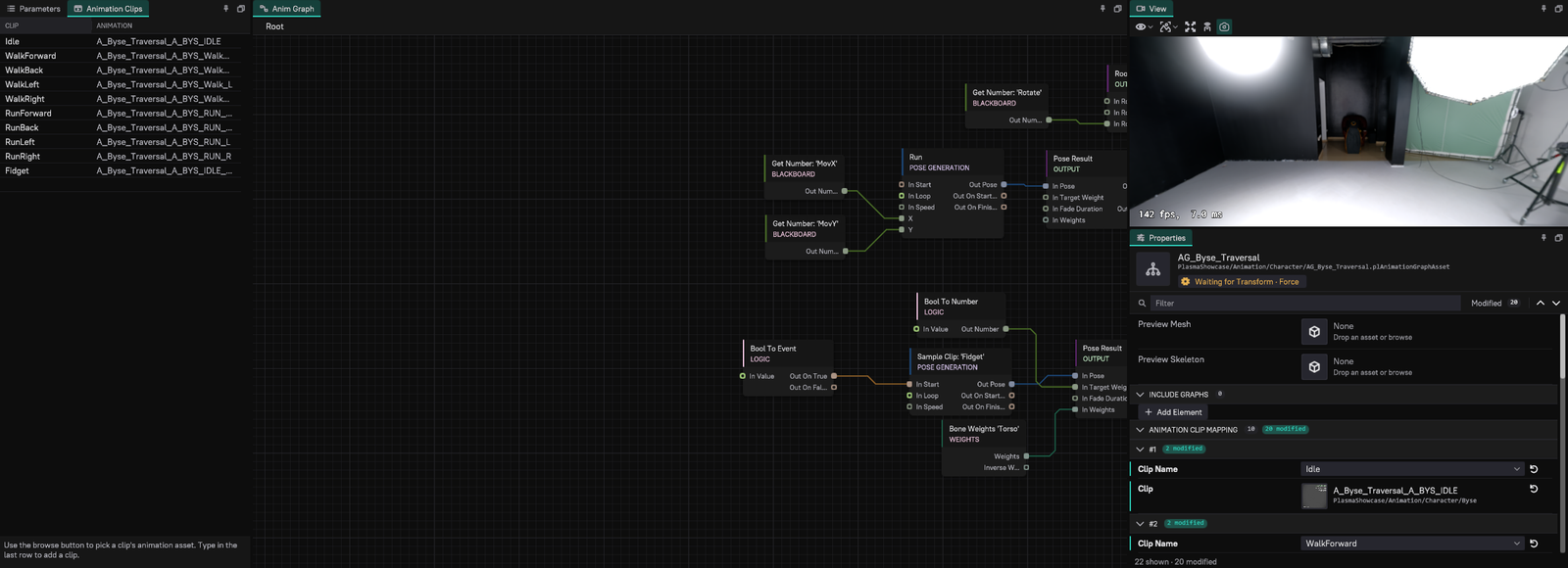
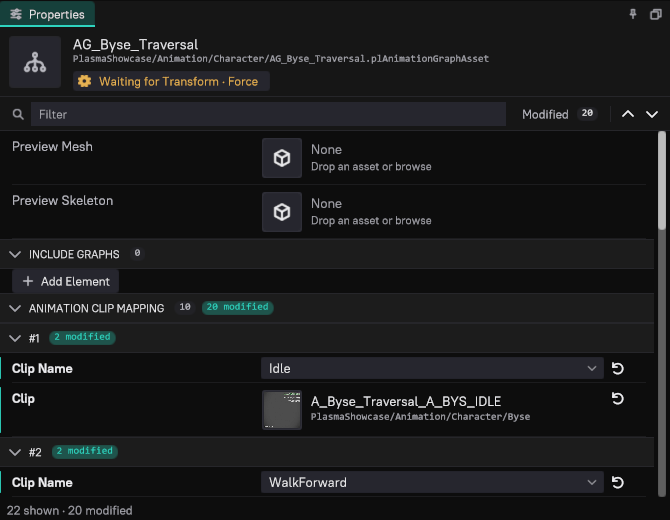
Asset Properties
- PreviewMesh: Skinned mesh used to preview the graph.
- PreviewSkeleton: Skeleton used for previewing, including a skeleton-only preview.
- IncludeGraphs: Additional animation graphs loaded with this graph. Use these to share reusable graph sections.
- AnimationClipMapping: Maps a Clip Name to a Clip asset. Sampling nodes select this name, rather than storing the clip asset directly.
Use descriptive names such as Idle, Walk, and Jump_Start. A character's Animation Clip Set can override these mappings at runtime. Preview mappings should use clips compatible with the preview skeleton.
Editing
Add nodes from the graph's context menu, select a node to edit its properties, and connect compatible output and input pins. Start with Sample Clip connected to Pose Result. The overview explains the data types.
A State Machine contains states; each state contains its own pose graph. Use the breadcrumb above the canvas to return to the containing graph.
Save and transform the asset before testing it in a scene. Assign the graph to the controller component's AnimGraph property.
Parameters and Animation Clips panels
Two panels sit to the left of the graph, as tabs:
- Parameters lists the blackboard entries the graph reads or writes, with their Name, Type (Number or Bool), Value, Live and Refs. Edit Value to drive the preview character, for example to try a speed or a bool that a transition checks. Live shows the value on the character being debugged while the scene plays, and Refs counts the nodes that use the entry.
- Animation Clips edits the graph's AnimationClipMapping as a table of Clip names and Animation assets. Use the browse button in the Animation column to pick a clip's animation asset, and type a name into the last row to add a clip. Each change is one undo step. The panel's status line shows the preview's state machine state and time, or the live debugging status while a scene plays.
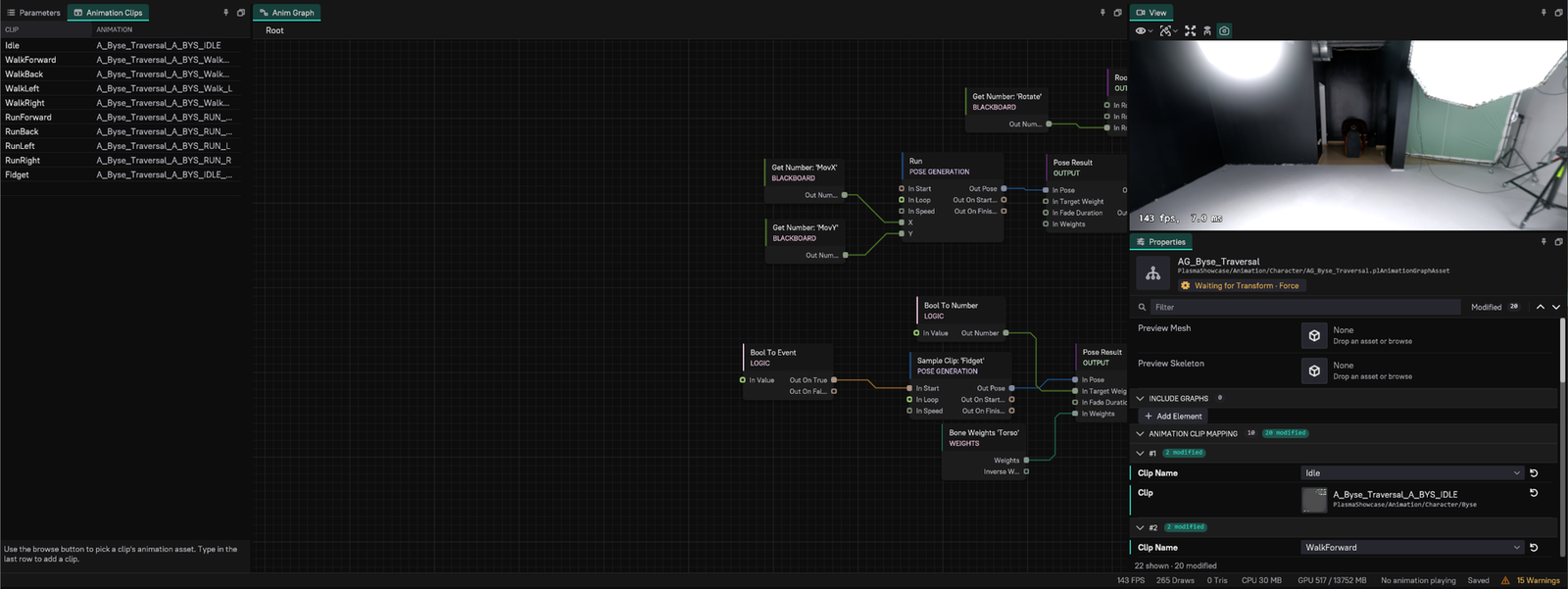
While a scene plays or simulates, the graph shows the selected character's states, transitions, blend weights and parameter values. See Debugging Animation Graphs.