Running a Scene
When you have a scene open in the editor, there are several ways to test it. The buttons in the middle of the scene toolbar start and stop them:

| Button | Shortcut | What it does |
|---|---|---|
| Play the Game | Ctrl+F5 | Runs the game, by default inside the scene viewport. The arrow next to it opens the Play menu. |
| Reset World | Shift+F5 | Stops playing or simulating and puts the scene back the way it was. |
| Pause | Pause | Pauses and resumes the running world. |
| Live Edit | F8 | Switches between playing the game and editing the running world. |
| Simulate World | F5 | Runs the world without the game: no player, no input. |
| Export and Run... | Ctrl+R | Exports the scene and runs it in the standalone player. |
Simulate World
Simulate World (F5) runs the simulation of all game objects inside the editor. Stop it with Reset World (Shift+F5). You can still select objects, modify their properties and move and rotate most of them. However, since the simulation actively modifies the state of objects, some things will not work. For example, physically simulated objects and other objects that move by themselves may not react to transform changes as expected. Similarly, modifying properties may not have an effect if the components in question don't reevaluate those properties during simulation.
Some objects are spawned by the simulation and are therefore unknown to the editor side. Those objects cannot be picked or modified.
In general, modifying the scene during simulation works for some objects and doesn't for others. Once the simulation is stopped, all modifications apply as expected to the reset scene.
Keep Simulation Changes
Simulation is useful to quickly check how some object behaves. It can also be used to simulate physical objects (for example boxes falling down) and then save the simulated transform to the scene.
While the simulation is active, select the objects that you are interested in and press K (Keep Simulation Changes). Once you stop the simulation, an undoable action moves the selected objects to the recorded location. You can record several keep changes actions during one simulation.
Play the Game
Play the Game (Ctrl+F5) runs the scene's game while the editor stays open. Besides the simulation it starts the game state, so the game gets input. If the scene contains a Player Start Point component, the game state may spawn the referenced prefab, so you can properly play the game.
By default the game runs inside the scene viewport you used last: it renders there, takes the mouse and keyboard, and the rest of the editor stays usable around it.
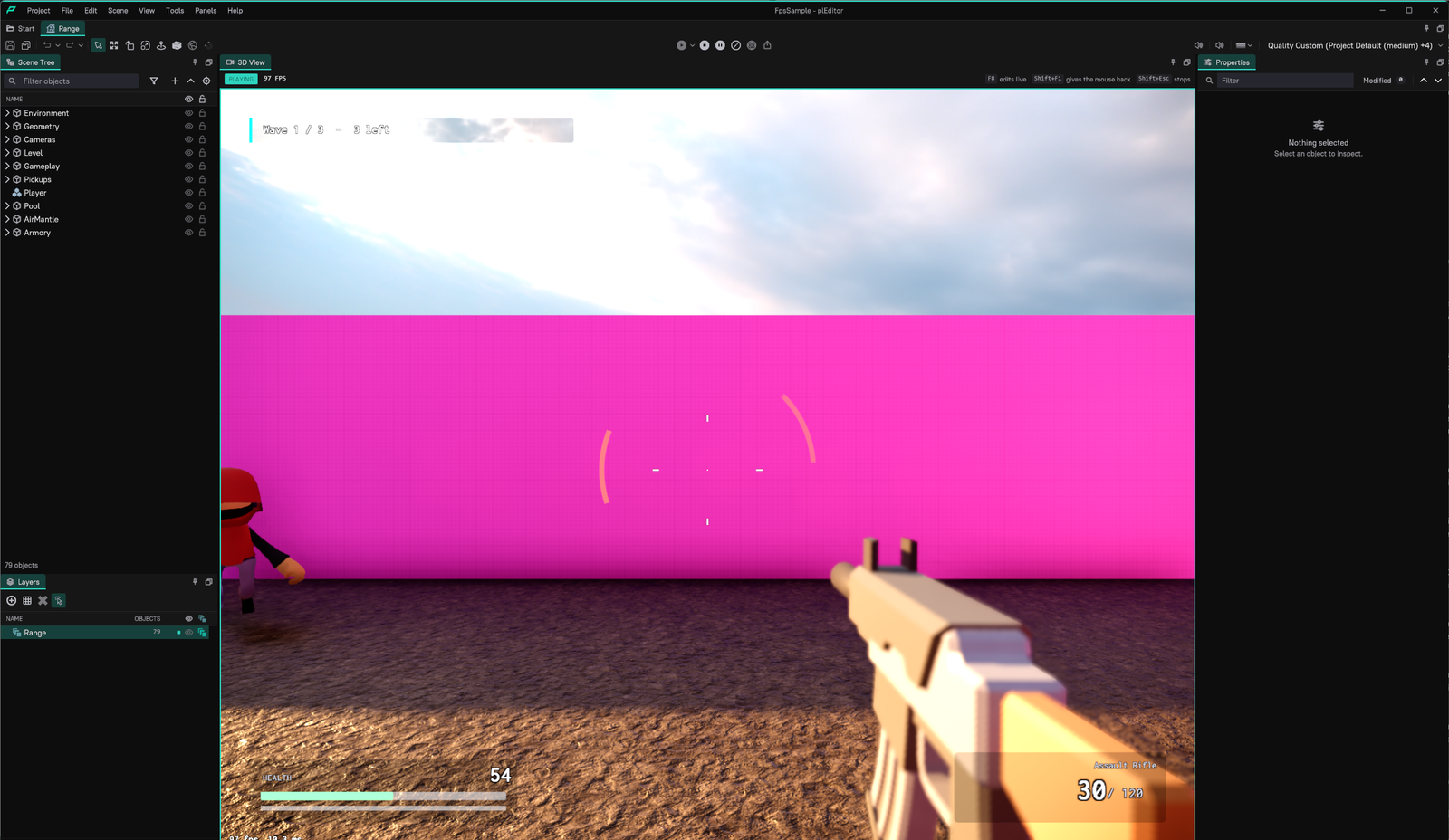
While the game plays in a viewport:
- The viewport has an accent frame. Its strip shows PLAYING (or PAUSED), the frame rate, and the keys that release the mouse and stop the game.
- The game has the mouse and keyboard. Keys go to the game, except the editor's Pause key and the two keys below.
Shift+F1releases the mouse, so you can select objects, read their live values in the Properties panel or open the profiler while the game keeps running. Click the viewport to give the game the mouse and keyboard again. Switching to another window also releases them.Shift+Escstops the game. PlainEscgoes to the game, so a game's pause menu works as it does in the player.- Gamepads always reach the game.
- The game renders with its own render pipeline and quality settings, as the player shows it. The viewport decides the resolution.
The viewport the game plays in is the one that has the keyboard, otherwise the one the pointer was over last, otherwise the first perspective viewport. If no viewport shows the scene, the game opens a window of its own.
The Play menu
The arrow next to the Play button opens a menu:

- Play in Selected Viewport / Play in Separate Window chooses where the game runs. In a separate window, the game gets a window of its own, sized by the project's window configuration. Click into it to give it the keyboard.
- Play From Here (
F12) starts the game with the player at the position under the cursor, if the scene contains a Player Start Point. This makes it quick to try out a feature without moving the player start. You can also right-click in the scene and choose Play From Here. - Launch in Player... exports the scene and runs it in the player, the same as Export and Run.
- Play Preferences... opens the editor preferences.
Live Edit
Live Edit (F8) drops back into the editor on the running game: the game keeps running (or pauses, see the preferences below), and the editor works on its world. F8 again goes back to the game exactly where it was.

While live editing:
- The viewport the game played in is an editor view again, starting from where the game camera was. Its strip shows LIVE EDIT, whether the game runs or is paused, buttons to pause and to step one frame, how many edits were made since the game started, and Back to Game. A blue frustum marks the game camera once you move away from it.
- Selection, picking, gizmos and every editing tool work. Gizmos sit where the game has the objects, not where the scene places them. Moving an object writes its new position into the scene.
- With one object selected, the Properties panel shows In the running game above its properties, with the live position and rotation where they differ from the scene.
- Spawned while playing at the end of the Scene Tree lists the objects the game created that are not in the scene, such as the player, projectiles and spawned prefabs. Select one to see its position and the properties of its components. Changes to those last until the game stops; nothing of them is saved.
- The game gets no input.
Edits made while playing go into the scene like any other edit and can be undone. When the game stops, the Edits On Stop preference decides what happens to them: Keep, Revert or Ask.
To inspect a running game: press Play, play to the moment you want to look at, press F8 (optionally pause with the button in the strip), fly the camera and select objects to read or change their values, then press F8 to continue or Shift+Esc to stop.
Play preferences
Tools > Preferences... > Application > Play, or Play Preferences... in the Play menu. The settings are stored per user and apply to every project.

| Setting | Default | Description |
|---|---|---|
| Play In | Selected Viewport | Where Play and Play From Here run the game: Selected Viewport or Separate Window. |
| Capture Mouse On Start | On | The game gets the mouse and keyboard as soon as it starts. Off: click the viewport first. |
| Maximize Viewport While Playing | Off | In a quad layout, the viewport the game plays in shows alone until the game stops. |
| Release Mouse | Shift+F1 | Gives the mouse and keyboard back to the editor. |
| Stop Playing | Shift+Esc | Stops the game. |
| Pause On Live Edit | Off | Pauses the game while you live edit, and lets it run again when you go back. |
| Edits On Stop | Keep | What happens to the edits made while the game played when it stops: Keep, Revert or Ask. |
The Live Edit key is a shortcut like any other and can be changed in Tools > Shortcuts....
Playing in a viewport is available on Windows. On other platforms the game plays in a window. Projects that use XR always play in a window.
Export and Run
Another way to test the scene is to export it to a binary format and run it in the plPlayer. Use Export and Run... in the toolbar or press Ctrl+R.

If you keep Transform all Assets checked, all assets in the project are transformed first, making sure they are up to date. Uncheck it to speed up the process if you know that all the assets you need are up to date already. Compile C++ Plugin builds the project's C++ plugin first. Update Thumbnail uses the scene camera with the Thumbnail usage hint to create a scene thumbnail. Export Only writes the exported scene without starting the player.
Both Simulate World and Play the Game run inside the editor process. Compared to a game running in a stand-alone process this has two drawbacks:
- The editor process has some performance overhead of its own, so this is not useful for performance testing.
- All component properties are initialized from the values as the editor has saved them. This is not the (optimized) binary serialization that is used for a final game. Since the binary serialization code has to be written manually, it can happen that properties that are exposed in the editor and work fine there have been forgotten in the binary serialization and therefore have no effect in the final game. Therefore, always test custom components with exported scenes.
If a scene is composed of multiple scene layers, only the objects from the currently loaded layers are exported.
Custom Player Executable
In the Export & Run dialog you can add a custom executable to run instead of the default plPlayer application with the + button next to Launch. Use this if you have a custom game application. The command line used is the same as for plPlayer, as shown in the dialog.
Troubleshooting
| Problem | Cause and fix |
|---|---|
| The game opened a window although Play In is Selected Viewport. | No viewport showed the scene, or the viewport had no picture yet after a few seconds, or the project uses XR. The log says which. |
| The game stopped by itself. | The viewport it played in was closed, or the layout switched between one viewport and four while it ran. |
| Keys do nothing in the game. | The game does not have the keyboard: the strip says "Click the view to play". Click the viewport. |
Esc does not stop the game. | That is intended: Esc belongs to the game. Use Shift+Esc or Reset World. |
| The cursor cannot leave the viewport. | The game has the mouse. Press Shift+F1. |
| A moved object jumps back while live editing. | The game sets its position every frame (a script, physics). Pause the game, or change what moves it. |
| An edit made while playing is gone after stopping. | Edits On Stop is Revert, or Ask was answered with undo. |