Motion Blur
Motion blur smears every pixel along its own motion during the frame, the way a film camera's open shutter does. Camera motion and object motion are handled separately: each has its own switch, strength and longest blur, so you can, for example, keep a fast-moving car blurred while the camera that follows it pans without smearing the background.
Motion blur is off by default. A scene opts in with a Post Process Volume, or a project turns it on with the Rendering.MotionBlur.Enable cvar.
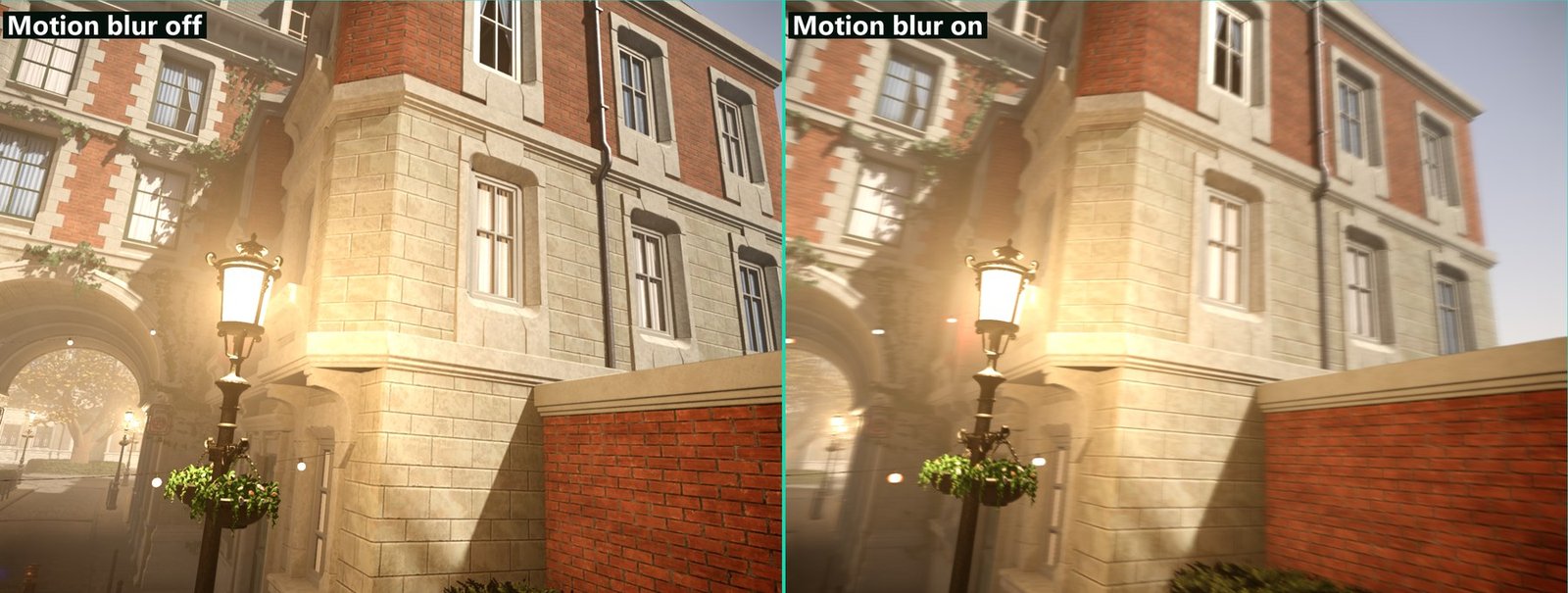
Bistro sample, camera following its spline path. The camera strength is raised to 1.5 here so the blur is easy to see; the default is 0.5.
Concepts
Camera part and object part. The camera part is the motion every pixel has because the camera moved or turned. The object part is the extra motion of things that move by themselves (characters, vehicles, physics objects). With the camera part off, the image is blurred as if the camera had been held still: an object the camera follows is blurred and the background is not.
Strength is a shutter. A strength of 0.5 corresponds to a 180° shutter: the blur is half of the motion of one frame. Because it is a fraction of a frame, the blur gets shorter as the frame rate rises. The longest blur is capped as a percentage of the view height.
Foreground and background. The gather weighs samples by depth, so a moving object in front blurs over the background, and a sharp object in front of a moving background keeps its edge.
Camera cuts. A frame in which the camera jumps is a cut, not motion, and is not blurred. A frame counts as a cut when:
- the main camera switches to a different camera component (detected automatically),
- code calls
plCameraComponent::NotifyCameraCut()(orplView::NotifyCameraCut()) before a hard cut or a teleport, - the camera moves further than
Rendering.MotionBlur.CutDistance(raised byCutSpeedat low frame rates) or turns more thanRendering.MotionBlur.CutAnglewithin one frame, Rendering.MotionBlur.SkipNextFrameis set, for cuts the test above cannot see,- it is the first frame of the view.
Objects that move further than Rendering.MotionBlur.RejectFraction of the view height in one frame are treated as teleported and are not blurred either.
Where it runs. On the HDR image after temporal anti-aliasing and depth of field, before bloom. The editor render pipeline uses the same order as the main pipeline.
Turning on motion blur for a scene
- Add a Post Process Volume component to an object in the scene. Leave
Globalon to affect the whole scene, or turn it off and setExtentsto limit it to an area. - In its Motion Blur group, turn on
OverrideMotionBlur.MotionBlurEnabledis on by default. - Adjust
MotionBlurCameraStrengthandMotionBlurObjectStrength, or turnMotionBlurCameraorMotionBlurObjectoff. - Press Play or Play in Viewport to see the result. Editor camera views are not blurred unless
Rendering.MotionBlur.EditorViewsis on (Motion blur in editor views in the Quality Settings panel).
Post Process Volume settings
| Property | Default | Description |
|---|---|---|
OverrideMotionBlur | Off | Applies the settings below while the volume affects the camera. |
MotionBlurEnabled | On | Turns motion blur on or off inside the volume. |
MotionBlurCamera | On | Blur from the motion of the camera. |
MotionBlurCameraStrength | 0.5 | Shutter fraction of the camera blur, 0 to 1.5. 0.5 is a 180° shutter. |
MotionBlurCameraMaxBlurPercent | 4 % | Longest camera blur as a percentage of the view height, 0.5 to 20 %. |
MotionBlurObject | On | Blur from the motion of objects. |
MotionBlurObjectStrength | 0.5 | Shutter fraction of the object blur, 0 to 1.5. |
MotionBlurObjectMaxBlurPercent | 4 % | Longest object blur as a percentage of the view height, 0.5 to 20 %. |
Player settings
Players can reduce motion blur in the Accessibility section of the game settings. These scales apply on top of whatever the scene asks for, and volumes never change them.
| Setting | Default | Effect |
|---|---|---|
Accessibility.MotionBlur (Motion blur) | 1 | Scales all motion blur. 0 turns it off. |
Accessibility.MotionBlur.Camera (Camera motion blur) | 1 | Scales the camera part only. |
Accessibility.MotionBlur.Object (Object motion blur) | 1 | Scales the object part only. |
Accessibility.ReducedMotion | false | On turns motion blur off, whatever the sliders say. |
The settings are written to the Accessibility.MotionBlur.Scale, Accessibility.MotionBlur.CameraScale and Accessibility.MotionBlur.ObjectScale cvars.
Quality
The quality preset sets the number of gather samples. Scenes still decide whether blur is on.
Rendering.MotionBlur.Quality | Preset | Samples |
|---|---|---|
| 0 | Low | 8, depth weighting only. Long blurs show visible steps. |
| 1 | Medium | 12 |
| 2 | High | 16 |
| 3 | Max (Ultra) | 28, with an extra consistency term. Intended for captures. |
The mobile preset clears Rendering.MotionBlur.Allowed, which turns motion blur off whatever the scene asks for.
Console variables
| CVar | Default | Description |
|---|---|---|
Rendering.MotionBlur.Enable | false | Master switch. Written by post process volumes. |
Rendering.MotionBlur.Allowed | true | Quality preset budget switch. Off disables motion blur whatever the scene asks for. |
Rendering.MotionBlur.Camera | true | Blur from the motion of the camera. |
Rendering.MotionBlur.Object | true | Blur from the motion of objects. |
Rendering.MotionBlur.CameraStrength | 0.5 | Shutter fraction of the camera blur, 0 to 1.5. |
Rendering.MotionBlur.ObjectStrength | 0.5 | Shutter fraction of the object blur, 0 to 1.5. |
Rendering.MotionBlur.CameraMaxBlurPercent | 4 | Longest camera blur in percent of the view height (0.5 to 20). |
Rendering.MotionBlur.ObjectMaxBlurPercent | 4 | Longest object blur in percent of the view height (0.5 to 20). |
Rendering.MotionBlur.Quality | 2 | Gather quality, 0 to 3. Set by the quality presets. |
Rendering.MotionBlur.MinBlurPixels | 0.5 | Blurs shorter than this many pixels are skipped, so still images stay untouched. |
Rendering.MotionBlur.ObjectThreshold | 0.5 | Object motion shorter than this many pixels counts as none. |
Rendering.MotionBlur.CutDistance | 2 | Metres the camera may move in one frame before the frame counts as a cut. 0 disables the test. |
Rendering.MotionBlur.CutSpeed | 100 | Metres per second the camera may move before a frame counts as a cut. Raises CutDistance at low frame rates. |
Rendering.MotionBlur.CutAngle | 45 | Degrees the camera may turn in one frame before the frame counts as a cut. 0 disables the test. |
Rendering.MotionBlur.RejectFraction | 0.25 | Object motion longer than this fraction of the view height in one frame is a teleport and is not blurred. 0 disables the test. |
Rendering.MotionBlur.EditorViews | false | Blur the editor's own camera views too. Off: only game views (Play, Play in Viewport, Player) are blurred. |
Rendering.MotionBlur.SkipNextFrame | false | Treats the next frame as a camera cut. Resets itself. |
Rendering.MotionBlur.Debug | 0 | Debug view, 0 to 8. Same views as the render modes below. |
Render modes
The viewport's render mode menu has a Motion Blur submenu. These modes run the pass even when the scene's motion blur is off.
| Render mode | Shows |
|---|---|
| Motion Blur Vectors | The blur vector of each pixel. |
| Motion Blur Neighborhood | The largest vector of the neighbouring tiles. |
| Motion Blur Rejection | Rejected object motion in red and camera-cut frames in magenta. |
| Motion Blur Weights | Gather weights: red = samples in front, green = samples behind. |
| Motion Blur Camera Part | Only the camera part of the motion. |
| Motion Blur Object Part | Only the object part of the motion. |
| Motion Blur Direction | The blur direction as a hue (angle). |
| Motion Blur Gather Split | Red where the pixel's own and the neighbourhood direction are gathered, green where only the neighbourhood is. |
Troubleshooting
| Symptom | Cause and fix |
|---|---|
| No blur at all | No post process volume turns it on (Rendering.MotionBlur.Enable is false by default), the mobile preset cleared Rendering.MotionBlur.Allowed, the player turned the Accessibility scale to 0 or enabled reduced motion, or you are looking through the editor camera. |
| No blur in the editor viewport | Editor camera views are not blurred by default. Use Play in Viewport, or turn on Rendering.MotionBlur.EditorViews. |
| A frame is smeared after a teleport or cut | Call NotifyCameraCut() on the camera component before the jump, or set Rendering.MotionBlur.SkipNextFrame. |
| Fast camera moves lose their blur | The motion exceeded the cut test. Raise Rendering.MotionBlur.CutDistance, CutSpeed or CutAngle. |
| Long blurs look stepped | Raise the quality preset, or lower the max blur percentage. |
| Static geometry shows faint blur | Raise Rendering.MotionBlur.ObjectThreshold. |