Ingame UI
To create ingame user interfaces, there are three options available:
Game UI
Game UI draws menus, HUDs and in-world screens from UI Document assets. A document is a tree of elements (panels, texts, buttons, sliders, lists, vector shapes) placed by anchors and offsets, styled by UI Style assets, drawn with UI Font assets, and bound to blackboard entries for live data. A UI Canvas component shows a document over the screen or on a panel in the world. The runtime is part of the engine; the plasma.gameui package adds the editors.
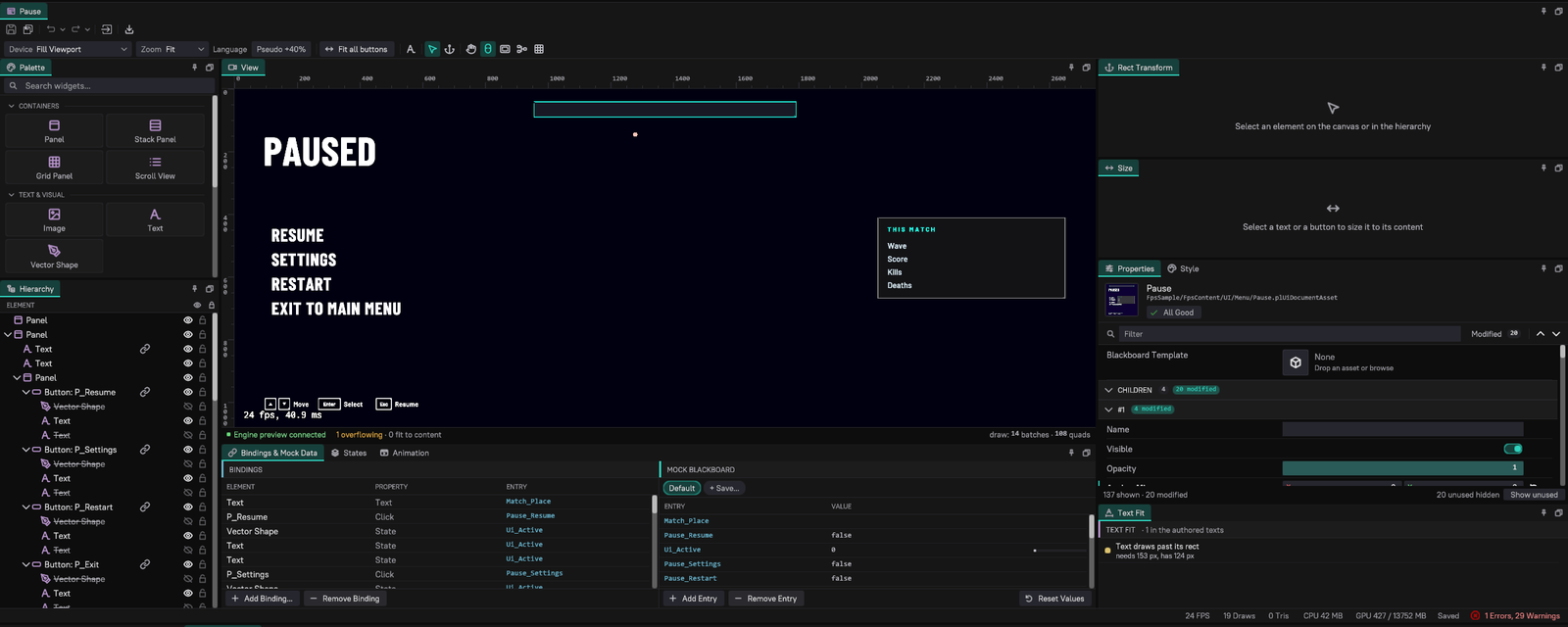
On touch screens, Game UI touch controls add on-screen joysticks and buttons.
ImGui and RmlUi
ImGui is very easy to use. With just a few lines of code you can add a 2D user interface to your game. It is very limited in styling, though. It's main purpose is either to mock up a UI quickly, or to expose developer tools.
RmlUi on the other hand is meant for building proper game UI, and therefore supports lots of styling options through CSS and and HTML like syntax for layouting. It is more work to set up, but gives you all the flexibilty you need.
It is recommended to use ImGui during early development and switch to RmlUi once your game reaches a more mature state. It is also possible to use both UI systems in parallel.