Visual Shaders
A material whose Shader Mode is Visual Shader gets its shader from a node graph instead of a shader file. The graph is edited in the Visual Shader panel, below the material's 3D preview. The preview follows the graph while you edit it, so you see the result without transforming the material. Transform writes the shader that the game uses.
An alternative to visual shaders is to write a custom shader based on a shader template.
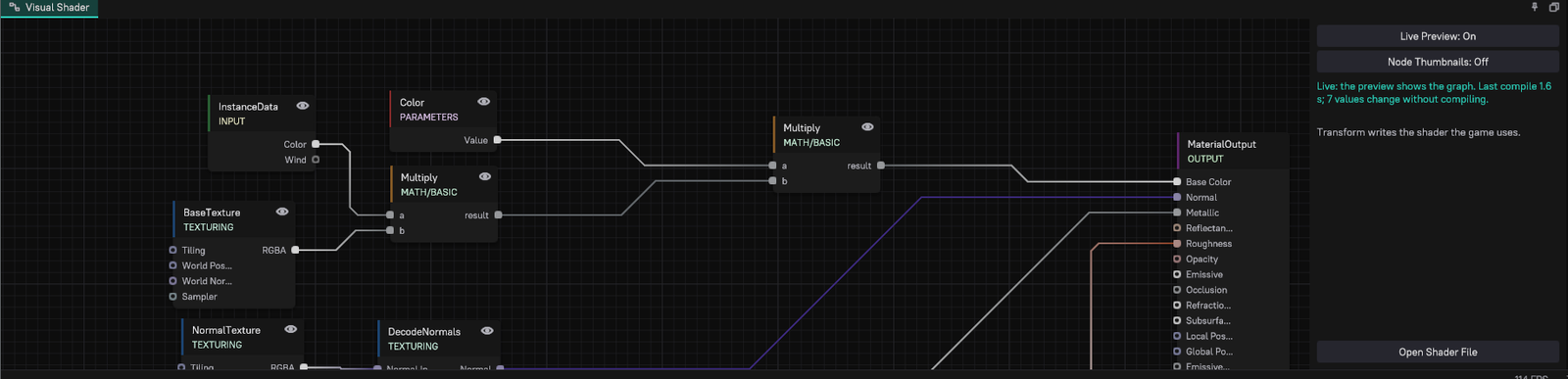
Creating a visual shader
- Create a material asset, or open an existing one.
- In the material's properties, set Shader Mode to Visual Shader. The Visual Shader panel appears below the preview.
- Add nodes with Space over the canvas, a right-click on the background, or by dragging a wire from a pin into empty space. Nodes come in categories such as Input, Constants, Parameters, Texturing, Math, Utils and Output.
- A graph has exactly one output node from the Output category (MaterialOutput for regular materials). Connect node outputs to its inputs (base color, normal, roughness, and so on).
- Save, and transform the material when you want the game to use it.
Clean Visual Shader Graph removes every node that does not lead to the output node.
Parameter nodes and Texture nodes become properties of the material, so materials that use this one as a base material can set them differently. Use a parameter for a value another material should change, and a Constants node or a typed-in input value for everything else.
The node graph editor shares its controls with the other graph editors: drag a marquee on the background to select several nodes, and press C to put a comment box around the selected nodes.
Live preview
With Live Preview on (the default), every edit of the graph reaches the preview by itself:
- Changing a value (a constant, a colour, an input value typed into a node) updates the preview straight away. The preview reads these values from the material's constants, so nothing compiles.
- Changing the graph (adding, removing or connecting nodes, or a setting that changes the generated code) compiles a new preview shader in the background shortly after the last edit, only for what the preview draws. Until it is ready, the preview keeps the last shader that compiled, so it never turns black or disappears.
- New Parameter and Texture nodes show up in the material's properties right away, so you can set them before the first Transform.
The column to the right of the graph shows the state:
| State | Meaning |
|---|---|
| Live | The preview shows the graph as it is. The line also says how long the last compile took and how many values change without compiling. |
| Compiling... | A new preview shader compiles. The preview shows the last graph that compiled. |
| Error | The graph does not compile. The preview keeps the last graph that compiled, and the nodes the errors are about are outlined in red. |
| The preview shows the last Transform. | Live Preview is off. |
Live Preview: On / Off in that column switches it. The setting is stored per material and per user, like the other preview settings; it is not part of the asset.
Constants and typed-in values change in the preview without compiling, but Transform still writes them into the shader as fixed values. A shipped material costs the same as it would without the live preview.
Previewing a node
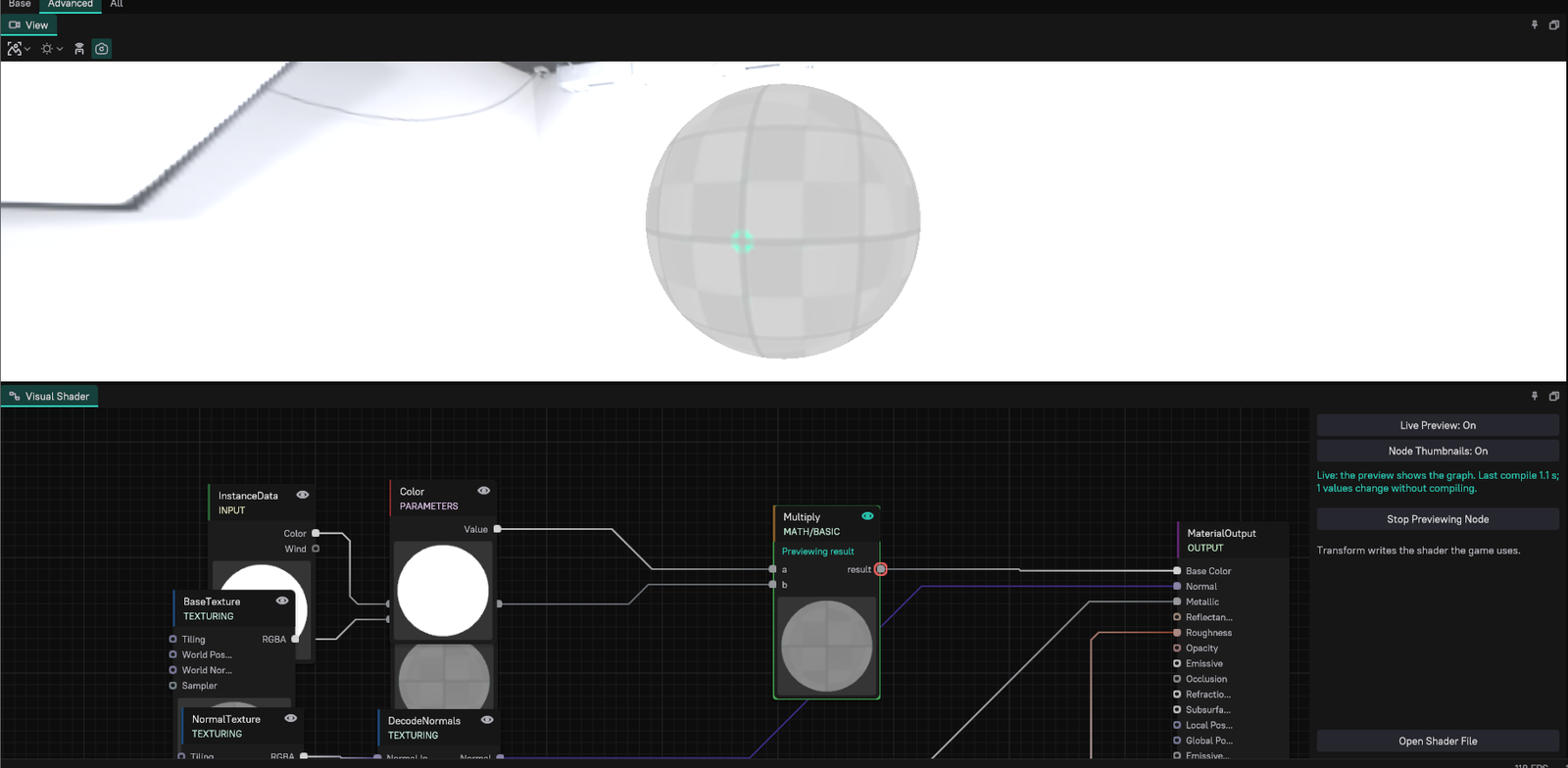
Every node with outputs has an eye button at the right of its header. Click it to show the node's first output on the preview model, unlit. Click it again, or click Stop Previewing Node in the status column, to show the material again. The node's context menu has Preview Output '...' for each of its outputs, and Stop Previewing.
While a node is previewed, its outline is green, its header says which output is shown, and the output pin has a ring. Scalars show as grey, two components as red and green, colours and vectors as they are. A previewed node does not have to be connected to the output node.
Node thumbnails
Node Thumbnails: On (in the status column) shows a small preview of each node's first output inside the node, so you can follow how a value changes along the graph. Up to 24 nodes get a thumbnail. Thumbnails work only while the live preview is on, and the setting is off by default.
Errors on nodes
When the graph does not compile, the status column lists the nodes the errors are about. Show '...' selects a node and frames it in the graph. Hover a red node to see the whole error.
Some errors are found before compiling, such as a required input that is not connected; those always name their node. Compiler errors name the node whose code they quote. An error that quotes no node's code is listed without a node.
Transform
Transform writes the shader the game uses and returns at once. The shader compiler then checks in the background that the shader compiles in each pass a material draws in (color, depth and shadows, the editor's debug views, picking). The status column shows Transform: checking that the shader compiles... and then the result. Exporting or packaging the project still compiles every permutation.
Open Shader File opens the shader that the last Transform generated.
Preview scene
The material window's toolbar has these preview controls. They apply to every material, not only to visual shaders.
| Button | What it does |
|---|---|
| Preview Model | Ball, Sphere, Box, Plane, or Custom Mesh: the mesh asset set in the Preview Mesh preference. |
| Preview Lighting | Studio (the preview's own lighting), Outdoor (a warm sun and a bright sky fill) or Night (a dim blue moon). |
| Rotate Light | Turns the Outdoor or Night light around the model. |
Asset thumbnails always use the Studio lighting.
Preferences
The material's document preferences:
| Preference | Default | Description |
|---|---|---|
| Parameter Detail | Advanced | Which shader parameters the properties list: Base, Advanced or All. |
| Live Preview | On | The preview follows every edit of the graph. |
| Preview Lighting | Studio | The lights of the preview scene. |
| Preview Mesh | none | The mesh of the Custom Mesh preview model. |
| Rotate Light | Off | Turns the preview's light around the model. |
| Node Thumbnails | Off | Shows each node's first output inside the node. |
Troubleshooting
- The preview does not change when I connect a node. Check that the status column says Live. Error names the problem. The preview shows the last Transform. means Live Preview is off.
- The column says the visual shader is not used by the material. Set Shader Mode to Visual Shader in the material's properties.
- New nodes from an edited node library (
.ddl) do not show. The editor reloads the node library when the file changes, and the preview compiles it without changing the transformed shader. Transform to ship it. - The game shows an older material than the preview. The preview never changes the asset. Transform the material.
- Where are the preview shaders? They are written next to the transformed shader, as
<Material>.preview<N>.plShaderin the AssetCache, and deleted when the material window closes.