Reflection Probe Components
The sphere reflection probe component (plSphereReflectionProbeComponent) and the box reflection probe component (plBoxReflectionProbeComponent) add local reflections to a scene. A probe captures a 360° image of the scene around it into a cubemap, which nearby surfaces then reflect. Outside every probe, surfaces reflect the sky light's fallback reflection.
Both are in the Rendering/Reflections category.
Sphere or box
- A sphere probe has a spherical influence volume. With
SphereProjectionon, the reflection is projected onto the sphere, otherwise to infinity (no parallax when the camera moves). Use it for open areas and around objects. - A box probe has a box-shaped influence volume and projects the cubemap onto its
ExtentswithBoxProjection, which corrects the parallax of the reflection when the camera moves. Use it for rooms and corridors.
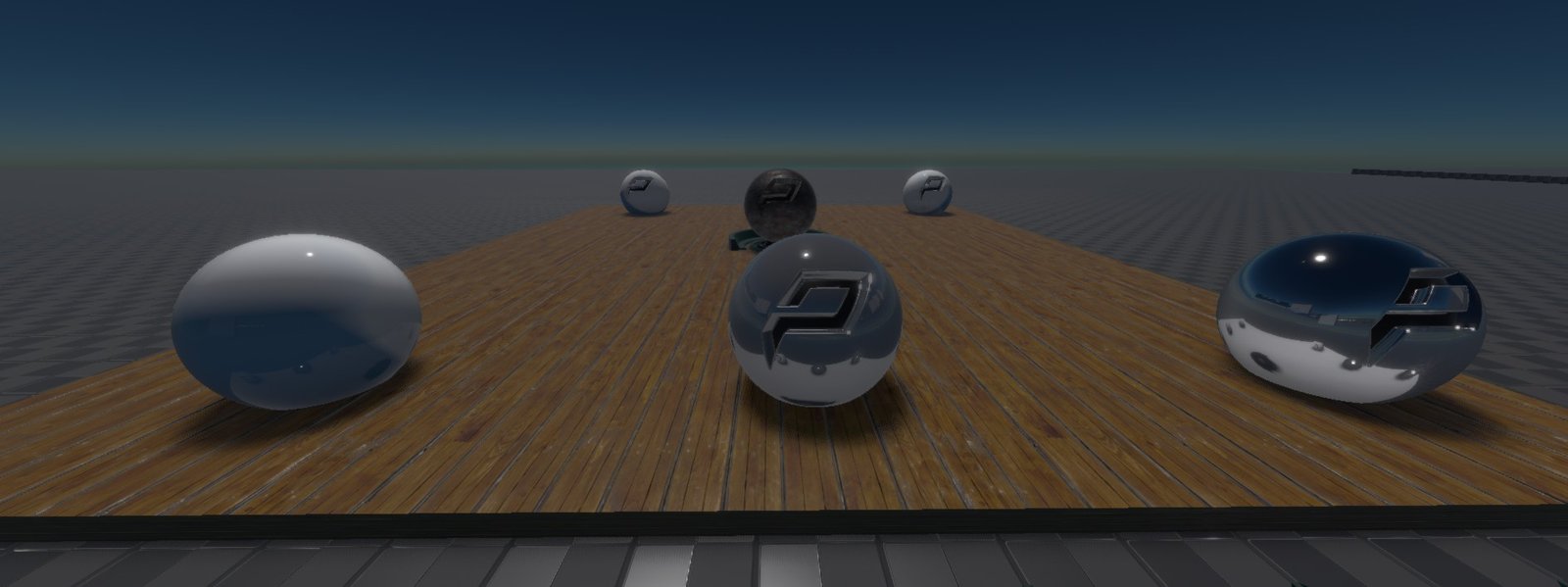
Probes take the game object's scale into account, so a non-uniformly scaled sphere probe is an ellipsoid. The image below shows a box probe on the left and a sphere probe on the right. The reflections in the metal balls both look convincing, but the floor reflection is clearly off for the sphere probe.
How probes combine
A probe's reflection is only visible inside its influence volume: the Radius of a sphere probe, or the Extents of a box probe scaled by InfluenceScale and moved by InfluenceShift. At the edge it blends into the next probe over the Falloff (sphere) or PositiveFalloff / NegativeFalloff (box).
The probes covering a pixel are sampled from the smallest to the largest. Where a cubemap is transparent, because nothing was rendered there during the capture, the next larger probe shows through, and finally the sky light's reflection. This is why probes exclude the SkyLight tag by default: the sky stays out of the probe, so the probes composite with the sky light at runtime, the sky can change without recapturing the probes, and the sky reflection keeps its own parallax.
The reflection pool holds a fixed number of cubemaps (32). When more probes are in view, the ones that are large and close to the camera win.
Capture
ReflectionProbeMode Static (the default) captures the probe once at the start and again when its settings change. Dynamic recaptures it continuously, for moving objects or changing light; it costs a capture and a filter pass, spread over frames (Rendering.ReflectionPool.MaxRenderViews and MaxFilterViews, 1 each per frame by default). Cubemaps are 128 × 128 per face.
CaptureOffset moves the capture point away from the game object, for example out of a wall or a table. The viewport shows a handle for it.
Component Properties
Sphere reflection probe
| Property | Default | Description |
|---|---|---|
Radius | 5 m | Radius of the influence volume. |
Falloff | 0.1 | Fraction of the radius (0 to 1) over which the probe blends into other probes. |
SphereProjection | On | Projects the reflection onto the sphere for parallax correction. Off projects it to infinity. |
Box reflection probe
| Property | Default | Description |
|---|---|---|
Extents | 5, 5, 5 m | Size of the box the cubemap is projected onto. |
InfluenceScale | 1, 1, 1 | Size of the influence volume relative to Extents, per axis (0 to 1). |
InfluenceShift | 0, 0, 0 | Moves the influence volume inside Extents, per axis (−1 to 1). |
PositiveFalloff, NegativeFalloff | 0.1, 0.1, 0 | Fraction of the influence volume over which the probe blends into other probes, per face of the box (+X, +Y, +Z and −X, −Y, −Z). The default has no falloff at the top and bottom. |
BoxProjection | On | Projects the reflection onto the box for parallax correction. |
Common properties
| Property | Default | Description |
|---|---|---|
ReflectionProbeMode | Static | Static captures once; Dynamic recaptures continuously. |
IncludeTags, ExcludeTags | none, SkyLight | Which objects the capture renders. The same mechanism as the camera component's tags. |
NearPlane, FarPlane | Auto, 100 m | Clip planes of the capture. Auto derives the near plane from the far plane. |
CaptureOffset | 0, 0, 0 | Position of the capture relative to the game object. |
ShowDebugInfo | Off | Shows a mirror sphere with the captured cubemap at the capture position, to check which objects the probe captured. |
ShowMipMaps | Off | With ShowDebugInfo, adds a stack of spheres with the reflection at increasing roughness. |
Best practices
Don't make mirrors with reflection probes
Reflection probes are approximate. Even with projection, a perfect mirror breaks down as soon as objects stand in the room: they are flattened onto the box's walls. Use probes to anchor reflections on glossy and rough surfaces, not as mirrors.
Keep box projections roughly cubic
A box that is much longer on one axis stretches the reflection at its long ends. Cover a long corridor with several probes that share one projection:
- Set the box's
InfluenceScaleto about 0.4 on the long axis (X in this example). - Duplicate the object in place and set the copy's
InfluenceShifton X to 1. - Duplicate it in place again and set this copy's
InfluenceShifton X to −1.
Don't align box probes exactly with walls
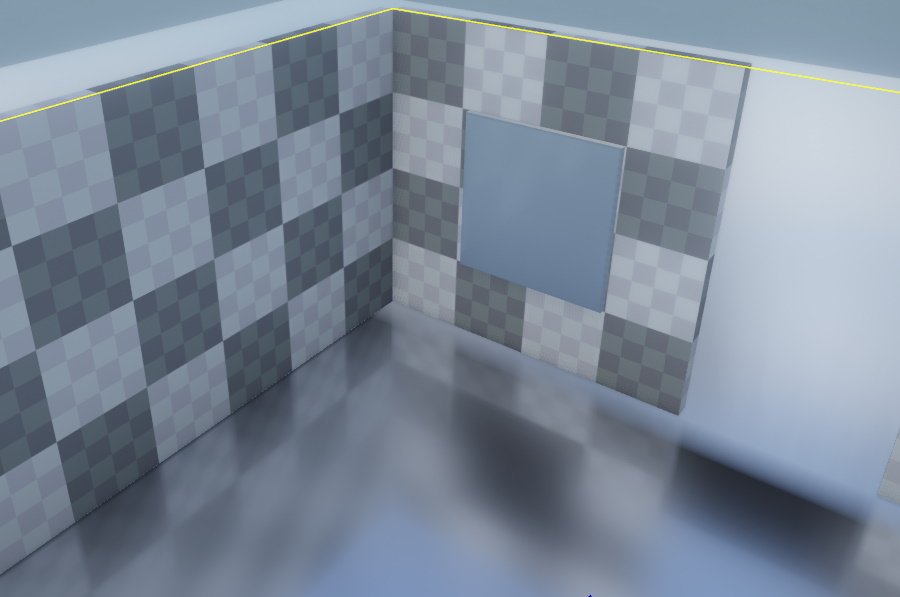
When using BoxProjection, don't try to match the box exactly to a room. In the image below the floor reflection fits perfectly, but the mirror on the wall gets no reflection: there is a door to another room, so a falloff is needed in that direction to avoid a hard seam, and the falloff moves the influence inwards, away from the wall.
Instead, make the extents larger than the room and set a falloff in each direction to fade into the neighbouring probes.
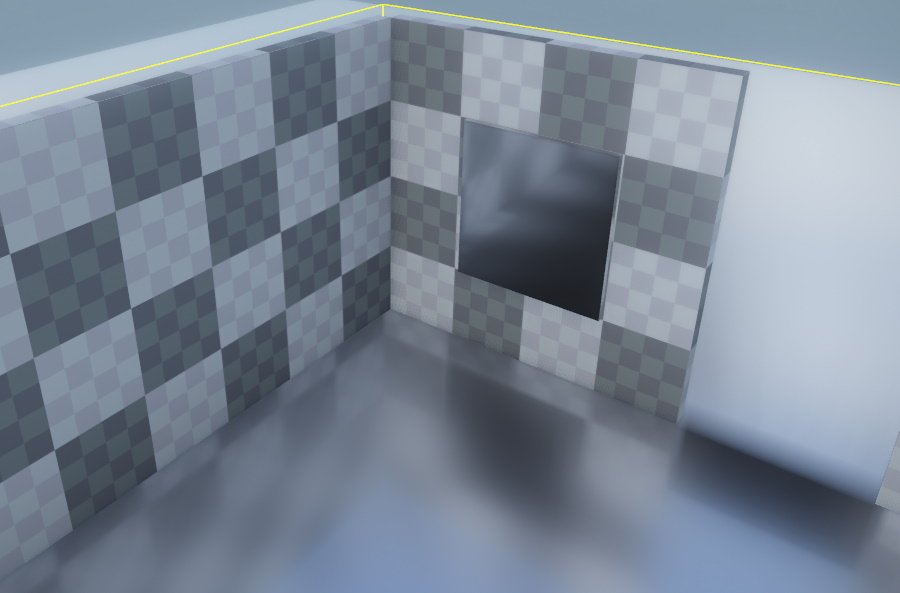
With a realistic floor material instead of a perfect mirror, the small misalignment is no longer visible, while the reflection keeps its parallax.